> ## Documentation Index
> Fetch the complete documentation index at: https://docs.superearn.io/llms.txt
> Use this file to discover all available pages before exploring further.

# How to Use

> Learn SuperEarn 101 step by step

<Note>This document is based on actual exchange/wallet screens (captures from official guides or user guides) and summarizes the <strong>screen flow users should follow during the SuperEarn deposit process</strong>. UI and policies may change at any time by each service provider.</Note>

## Overall Flow

Below is the basic flow to deposit into SuperEarn. (Asset: USDT)

<AccordionGroup>
  <Accordion title="Overall flow summary">
    <Steps>
      <Step title="Go to the USDT withdrawal menu on your CEX">
        Go to the USDT withdrawal menu on your CEX (exchange).
      </Step>

      <Step title="Set the recipient wallet to your MetaMask address">
        Set the recipient wallet to your MetaMask address (0x...).
      </Step>

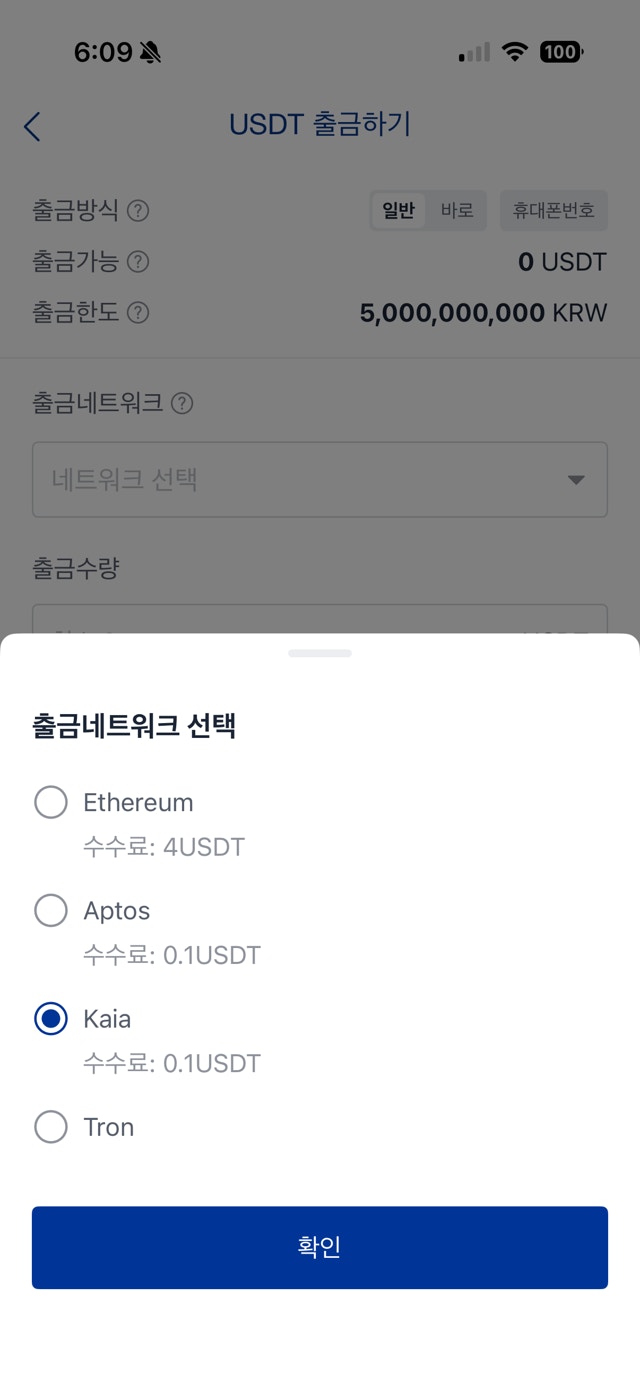
      <Step title="Select Kaia as the network">
        Choose the same network (transfer method) used by SuperEarn (e.g., Kaia).
      </Step>

      <Step title="Confirm deposit, then deposit into SuperEarn">
        After confirming the deposit in MetaMask, connect your wallet and deposit in SuperEarn.
      </Step>
    </Steps>
  </Accordion>

  <Accordion title="3 key points to double-check">
    <Steps>
      <Step title="Address">
        <ul>
          <li>Verify that your MetaMask address is correct</li>
          <li>Recheck the first 6 and last 4 characters to prevent clipboard tampering/typos</li>
        </ul>
      </Step>

      <Step title="Network">
        <ul>
          <li>Set the withdrawal network to Kaia</li>
          <li>If the network is wrong, asset recovery can be very difficult or impossible</li>
        </ul>
      </Step>

      <Step title="Fees/minimum withdrawal/received amount">
        <ul>
          <li>Check the exchange withdrawal fee</li>
          <li>Check the minimum withdrawal amount and final received amount</li>
        </ul>
      </Step>
    </Steps>
  </Accordion>
</AccordionGroup>

***

## 1. Prepare your wallet: Add the Kaia network

(For MetaMask users) SuperEarn automatically supports the Kaia network when connecting MetaMask, but we recommend adding the network manually beforehand to verify your wallet address and balance.\
For details, see the [official Kaia docs](https://docs.kaia.io/).

<AccordionGroup>
  <Accordion title="Add the MetaMask network">
    <Steps>
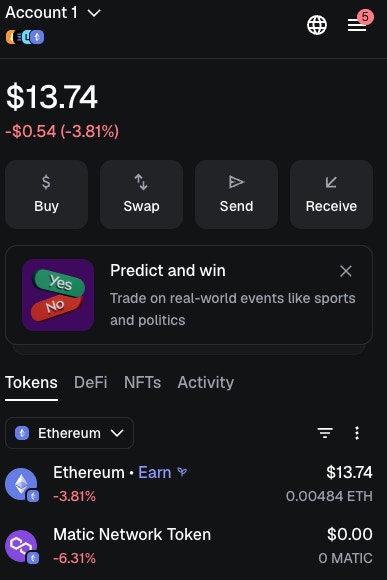
      <Step title="Check the MetaMask main screen">
        Check an example of the MetaMask main screen.

        <img width="50%" src="https://mintcdn.com/superearn-fe42391a/PMV45DXKHOGbDPfJ/images/tuto1.webp?fit=max&auto=format&n=PMV45DXKHOGbDPfJ&q=85&s=b311f7b837d93ad48b77d93bb41b85e0" data-path="images/tuto1.webp" />
      </Step>

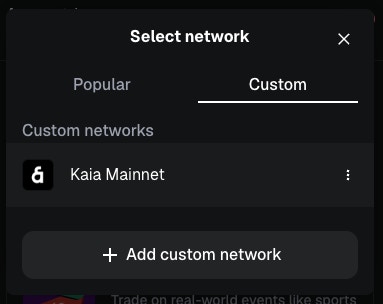
      <Step title="Open the Add Network screen">
        <p><strong>Example screen</strong>: MetaMask network selection -> Add custom network</p>

        <img width="50%" src="https://mintcdn.com/superearn-fe42391a/PMV45DXKHOGbDPfJ/images/tuto2.webp?fit=max&auto=format&n=PMV45DXKHOGbDPfJ&q=85&s=739274d922537762335253c0fa545413" data-path="images/tuto2.webp" />
      </Step>

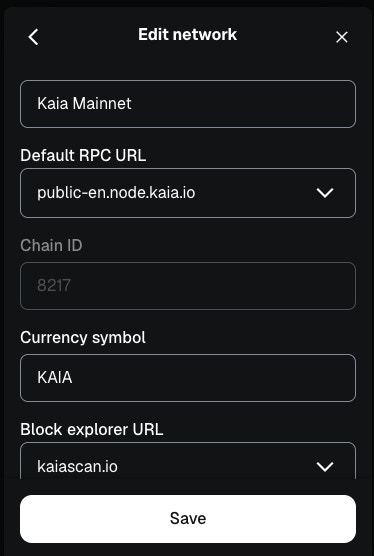
      <Step title="Enter Kaia network information">
        <ul>
          <li>Network Name: Kaia Mainnet</li>
          <li>RPC URL: [https://public-en.node.kaia.io](https://public-en.node.kaia.io)</li>
          <li>Chain ID: 8217</li>
          <li>Currency Symbol: KAIA</li>
          <li>Explorer: [https://kaiascan.io](https://kaiascan.io)</li>

          <img width="50%" src="https://mintcdn.com/superearn-fe42391a/PMV45DXKHOGbDPfJ/images/tuto3.webp?fit=max&auto=format&n=PMV45DXKHOGbDPfJ&q=85&s=9c6fc3b5bcc449a6b030e6533cd22628" data-path="images/tuto3.webp" />
        </ul>
      </Step>

      <Step title="Add the USDT token symbol on Kaia Mainnet">
        Even after Kaia Mainnet is added, the USDT token symbol must be added separately.

        **Path**

        <ul>
          <li>Click the '+' button in the chain selection area</li>
          <li>Enter the token contract address</li>
          <li>USDT contract address: `0xd077a400968890eacc75cdc901f0356c943e4fdb`</li>
          <li>MetaMask will automatically recognize USDT. Click Next -> Import to add the Kaia USDT token.</li>
        </ul>
      </Step>
    </Steps>
  </Accordion>

  <Accordion title="OKX wallet, Kaia wallet, etc.">
    You do not need to add the network separately.
  </Accordion>
</AccordionGroup>

***

## 2-1. Withdraw from an exchange to your wallet (Binance, Upbit, Bithumb)

<AccordionGroup>
  <Accordion title="Binance withdrawal flow (app)">
    <Steps>
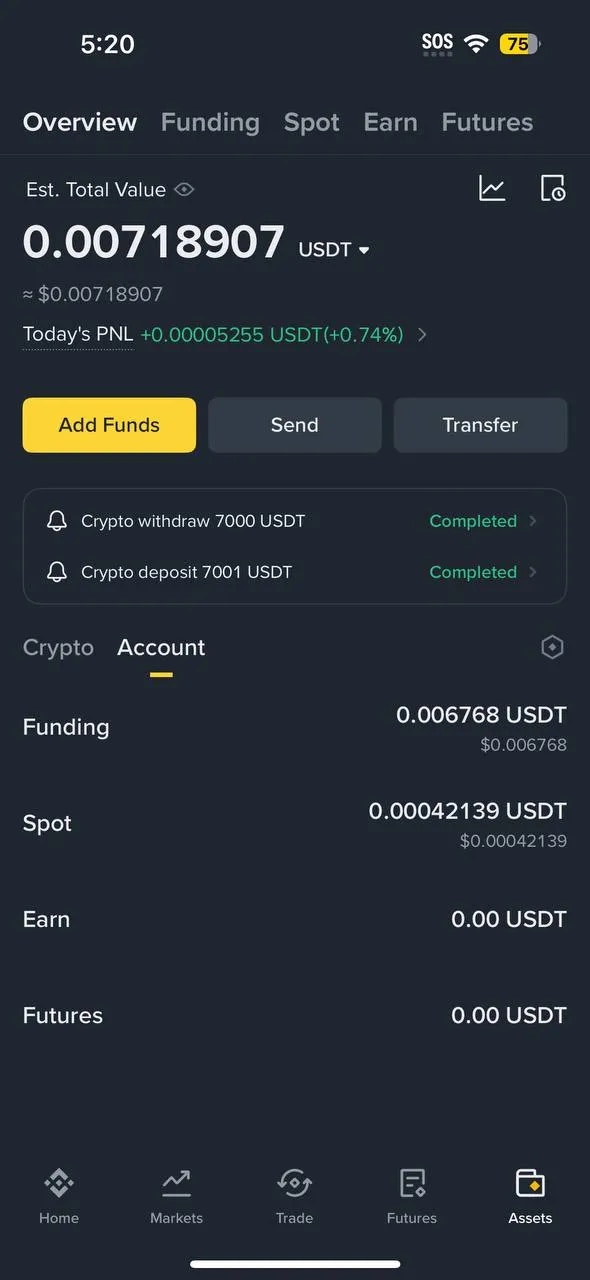
      <Step title="Assets -> Send">
        Go to Assets in the bottom menu, then tap Send.

        <img width="50%" src="https://mintcdn.com/superearn-fe42391a/PMV45DXKHOGbDPfJ/images/tuto6.webp?fit=max&auto=format&n=PMV45DXKHOGbDPfJ&q=85&s=3c1e3b3097baf1d886e131bf6bbedfa4" data-path="images/tuto6.webp" />
      </Step>

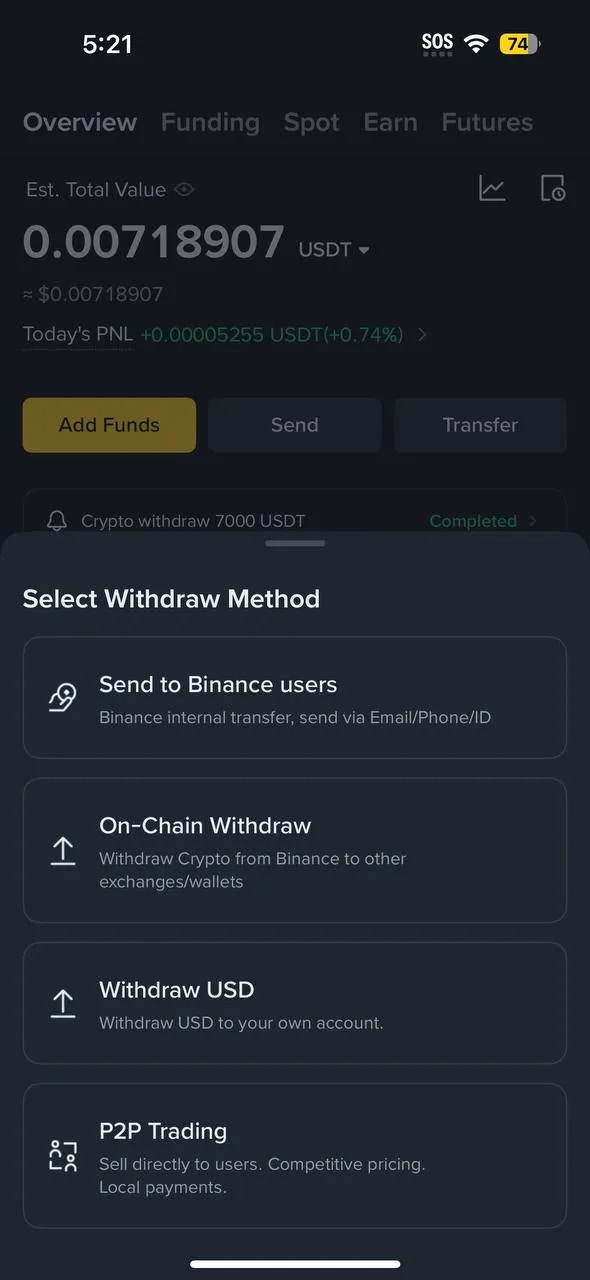
      <Step title="Select transfer method (On-chain)">
        After entering Send, select On-chain Withdraw.

        <img width="50%" src="https://mintcdn.com/superearn-fe42391a/PMV45DXKHOGbDPfJ/images/tuto7.webp?fit=max&auto=format&n=PMV45DXKHOGbDPfJ&q=85&s=299ac1b1ae646bdc1a38732c0dc37c89" data-path="images/tuto7.webp" />
      </Step>

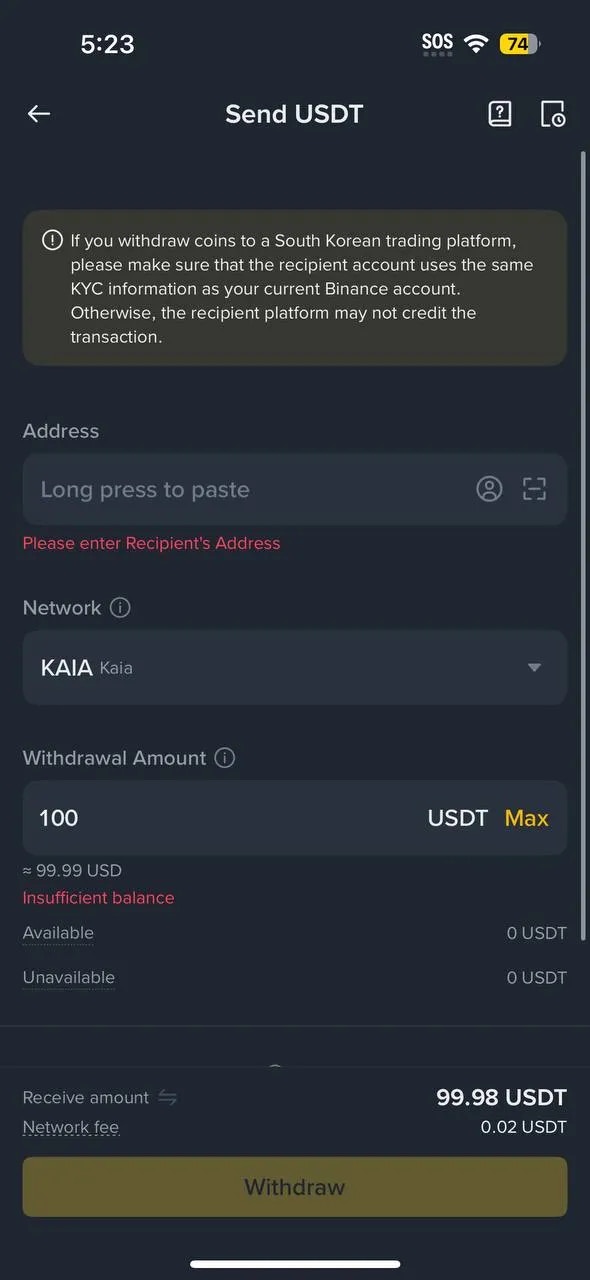
      <Step title="Enter withdrawal details">
        <ul>
          <li>Asset: USDT</li>
          <li>Address: Wallet address (0x...)</li>
          <li>Network: Kaia</li>
          <li>Amount: Enter withdrawal amount and check fee/final amount</li>

          <img width="50%" src="https://mintcdn.com/superearn-fe42391a/PMV45DXKHOGbDPfJ/images/tuto8.webp?fit=max&auto=format&n=PMV45DXKHOGbDPfJ&q=85&s=b9439f01a17f342c63edaadc2bfedb02" data-path="images/tuto8.webp" />
        </ul>

        <p><strong>Warning</strong>: If the network is different, asset recovery can be very difficult or impossible.</p>
      </Step>

      <Step title="Confirm Order -> Final check">
        Final review of withdrawal address, network, amount, and fee,\
        then complete security steps such as 2FA/email verification.
      </Step>
    </Steps>
  </Accordion>

  <Accordion title="Upbit withdrawal flow (app)">
    <Steps>
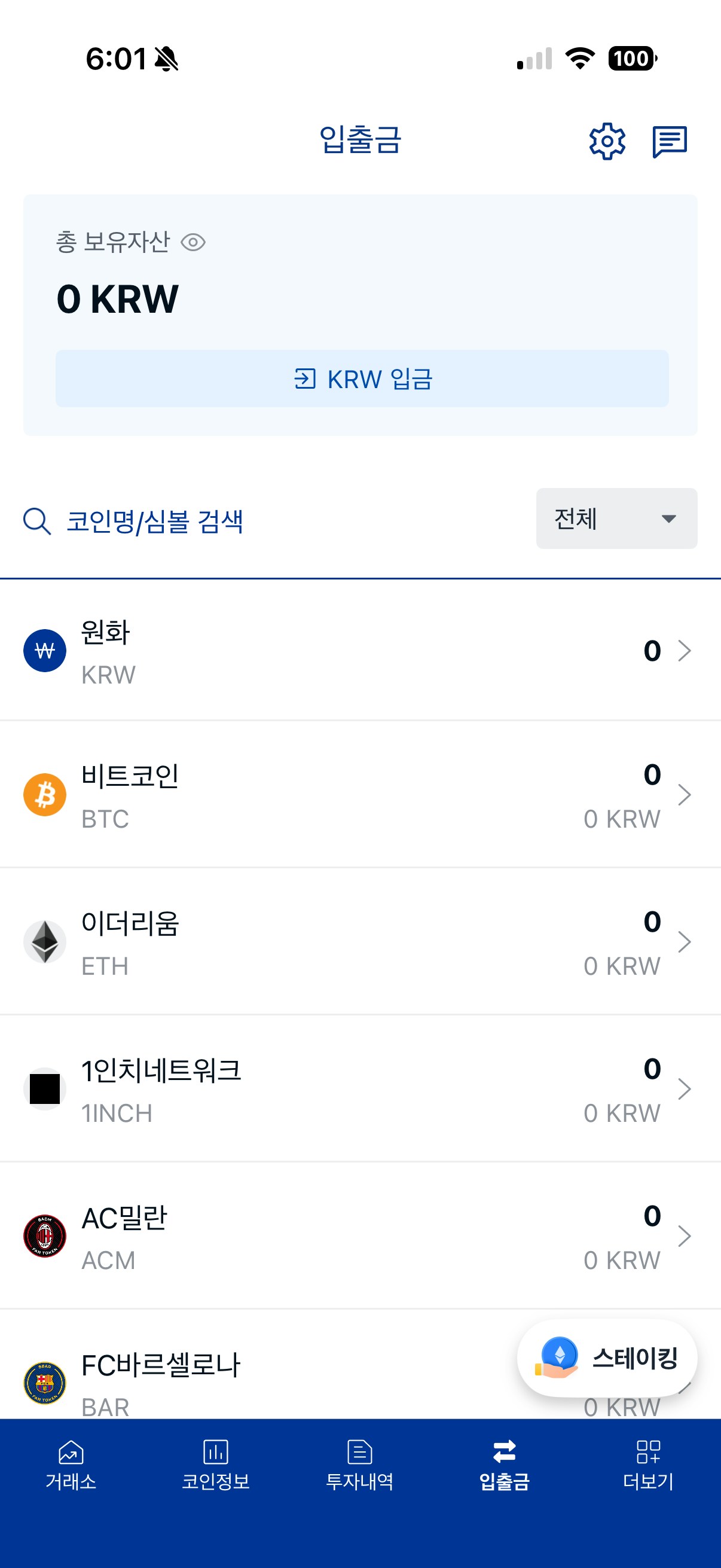
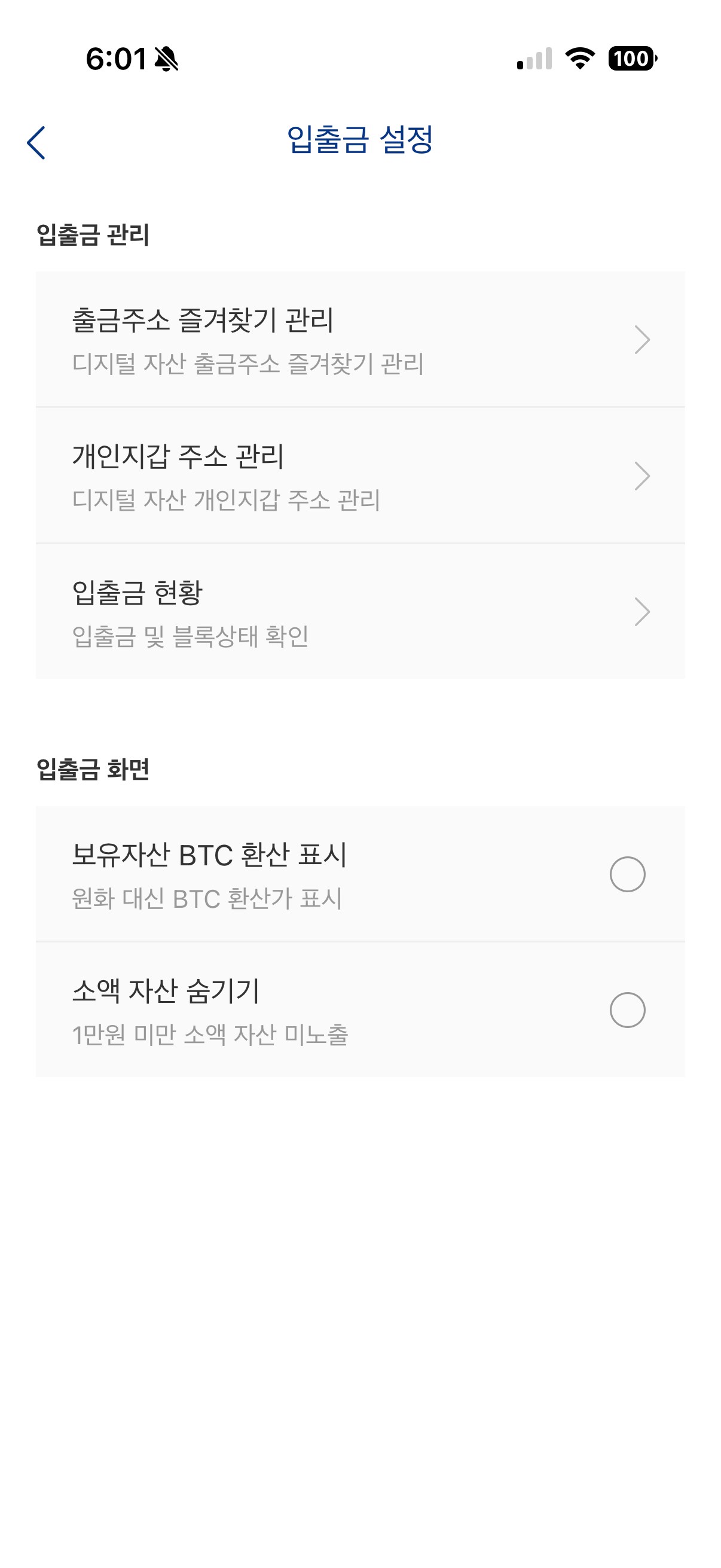
      <Step title="Register a personal wallet address (mobile example)">
        <p>Under Upbit's travel rule policy, you often must register a personal wallet (e.g., MetaMask) address before you can withdraw.</p>
        <p><strong>Deposit/Withdraw -> Settings -> Personal Wallet Address Management</strong></p>

        <img width="50%" src="https://mintcdn.com/superearn-fe42391a/x9dSldna6RDpfNn-/images/tuto9.webp?fit=max&auto=format&n=x9dSldna6RDpfNn-&q=85&s=f0a434ad171bf4147f20b8f0f21dcfd3" data-path="images/tuto9.webp" />

        <img width="50%" src="https://mintcdn.com/superearn-fe42391a/PMV45DXKHOGbDPfJ/images/tuto10.webp?fit=max&auto=format&n=PMV45DXKHOGbDPfJ&q=85&s=5371060d109e0377c52bc8543bca8e35" data-path="images/tuto10.webp" />
      </Step>

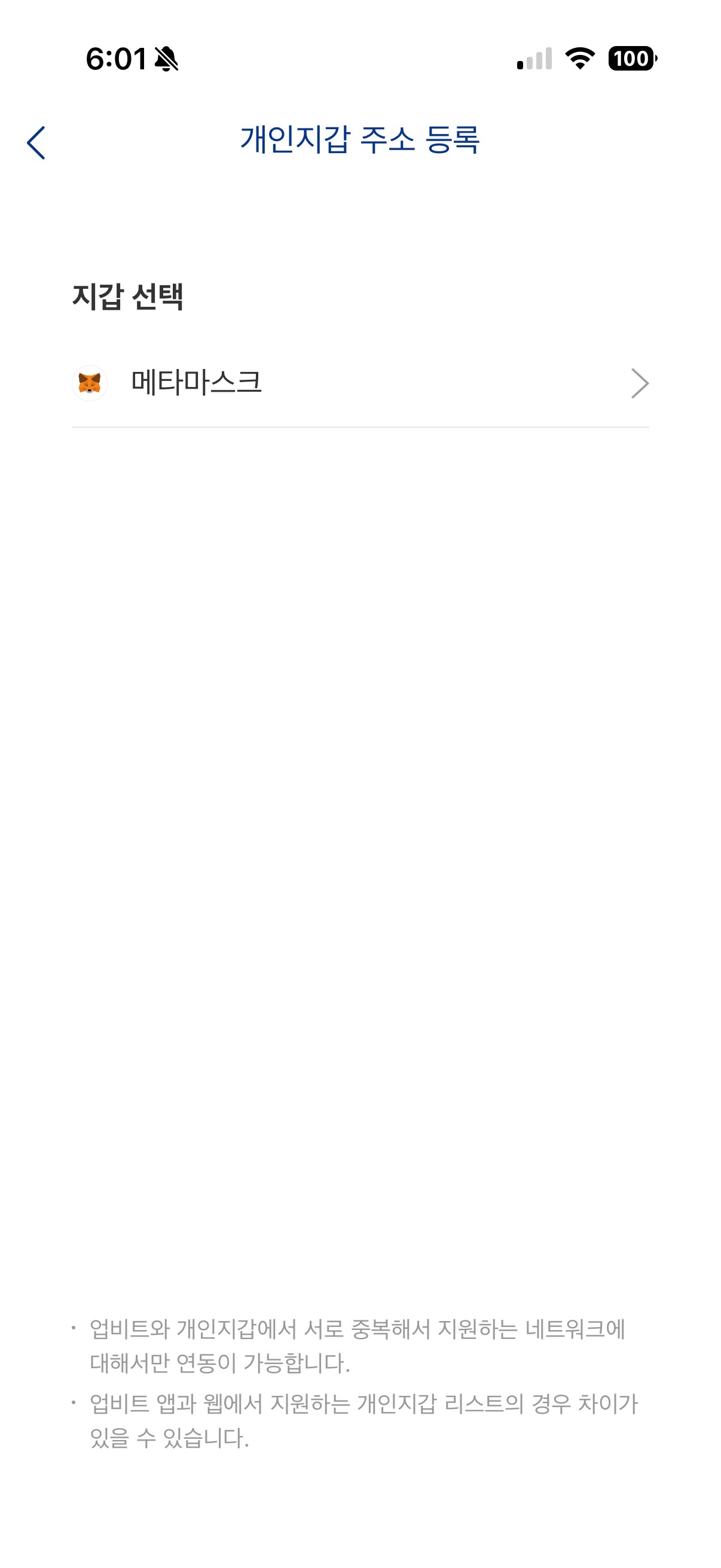
      <Step title="Personal wallet address management -> Register address">
        Tap the Register Address button to start registering your personal MetaMask wallet.

        <img width="50%" src="https://mintcdn.com/superearn-fe42391a/PMV45DXKHOGbDPfJ/images/tuto11.webp?fit=max&auto=format&n=PMV45DXKHOGbDPfJ&q=85&s=f9c9845d609d9bade4eb6ef04c574f11" data-path="images/tuto11.webp" />
      </Step>

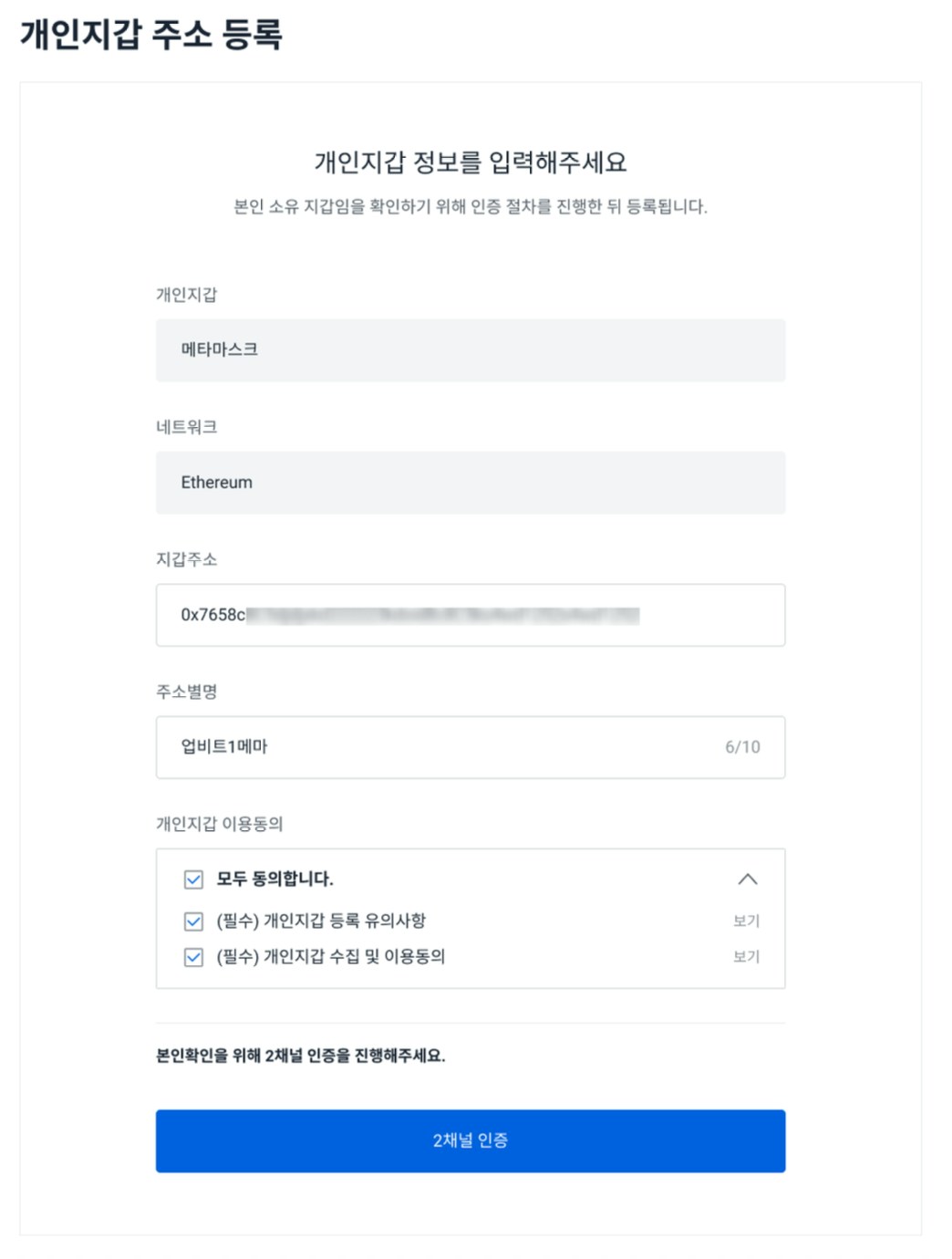
      <Step title="Enter registration info and complete 2-channel verification">
        <ul>
          <li>Wallet address: Enter or link your MetaMask address (0x...)</li>
          <li>Address alias: Enter a recognizable name</li>
          <li>Proceed after completing 2-channel verification</li>

          <img width="50%" src="https://mintcdn.com/superearn-fe42391a/PMV45DXKHOGbDPfJ/images/tuto12.webp?fit=max&auto=format&n=PMV45DXKHOGbDPfJ&q=85&s=8a04796e0a7cfd93056fb9e4f5ce9350" data-path="images/tuto12.webp" />
        </ul>
      </Step>

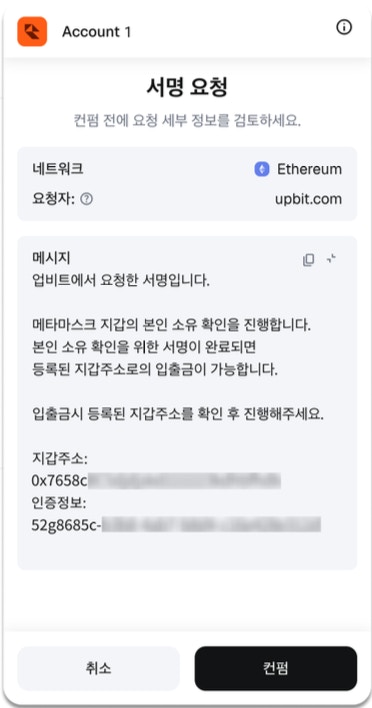
      <Step title="Approve MetaMask signature">
        Approve the signature requested by Upbit in MetaMask\
        (it should not request your seed phrase/private key).

        <img width="50%" src="https://mintcdn.com/superearn-fe42391a/PMV45DXKHOGbDPfJ/images/tuto13.webp?fit=max&auto=format&n=PMV45DXKHOGbDPfJ&q=85&s=9d5a620f14ba520e83fbb47accc8486e" data-path="images/tuto13.webp" />
      </Step>

      <Step title="Confirm address registration">
        Confirm the registered personal wallet address/network appears in the list.
      </Step>

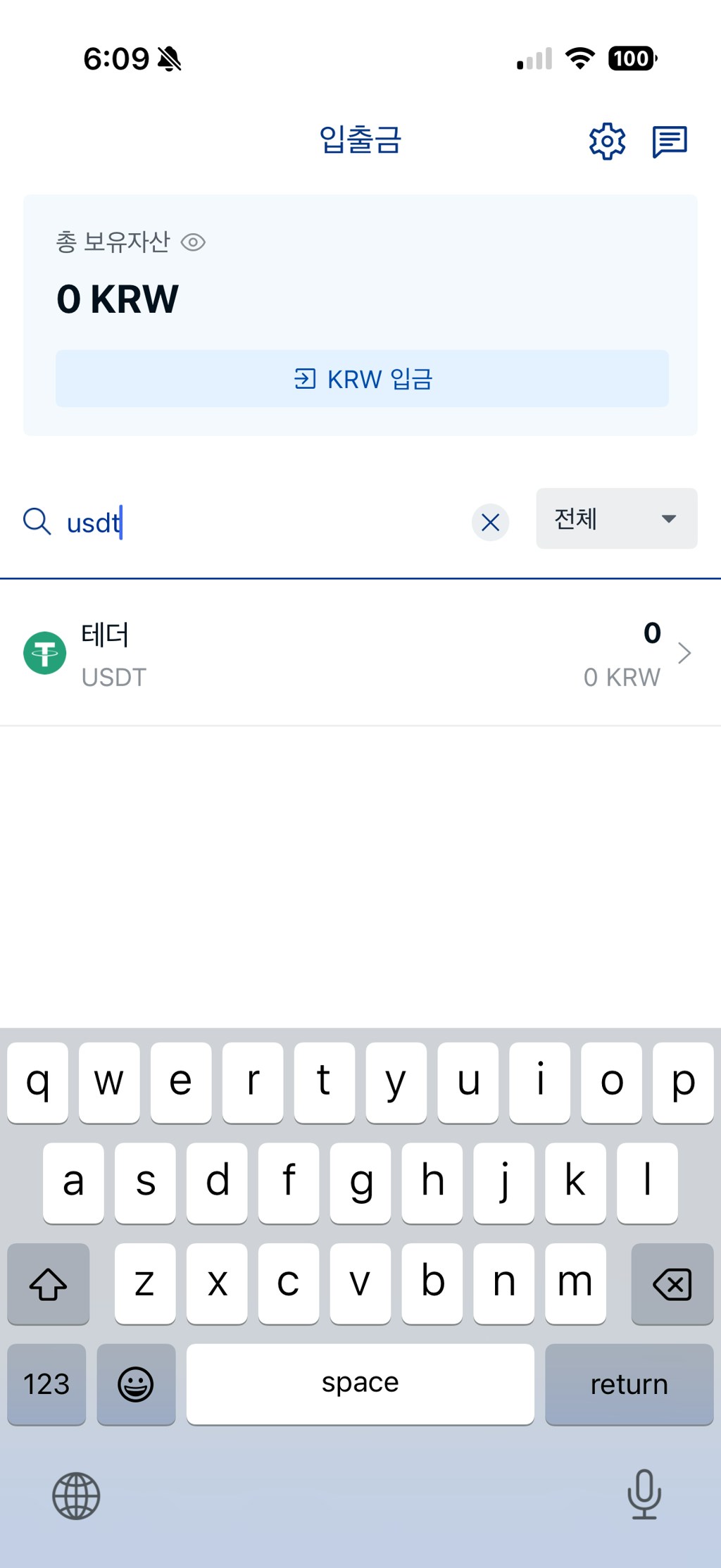
      <Step title="Open withdrawal screen and enter amount">
        \[Deposit/Withdraw] -> Select USDT -> Withdraw -> Enter amount

        <img width="50%" src="https://mintcdn.com/superearn-fe42391a/PMV45DXKHOGbDPfJ/images/tuto14.webp?fit=max&auto=format&n=PMV45DXKHOGbDPfJ&q=85&s=5acdfce6d02059e08d84e9505b4b863a" data-path="images/tuto14.webp" />
      </Step>

      <Step title="Enter recipient/address (or select registered wallet)">
        Recipient: Personal wallet\
        Address: Select your registered MetaMask address\
        Network: Recheck that it matches Kaia

        <img width="50%" src="https://mintcdn.com/superearn-fe42391a/PMV45DXKHOGbDPfJ/images/tuto15.webp?fit=max&auto=format&n=PMV45DXKHOGbDPfJ&q=85&s=edd96baeb7cc49fadc5e57bcfac626d7" data-path="images/tuto15.webp" />
      </Step>

      <Step title="Review withdrawal details and submit">
        Final check before withdrawal (asset/amount/address/fee),\
        complete additional verification -> submit withdrawal.
      </Step>
    </Steps>
  </Accordion>

  <Accordion title="Bithumb withdrawal flow (app)">
    <Steps>
      <Step title="Notice: Pre-register your Kaia wallet address">
        <p>To withdraw crypto to a personal wallet from Bithumb, you must pre-register a wallet address you own via a whitelist process.</p>

        <ul>
          <li>If the address is not registered, withdrawals are limited to less than 1,000,000 KRW.</li>
          <li>Pre-registration is required to withdraw 1,000,000 KRW or more.</li>
          <li>We recommend pre-registering even for amounts under 1,000,000 KRW.</li>
        </ul>

        <div className="flex gap-3">
          <img className="w-1/2" width="50%" src="https://mintcdn.com/superearn-fe42391a/x9dSldna6RDpfNn-/images/tutorials/tutorial_bithumb_0.webp?fit=max&auto=format&n=x9dSldna6RDpfNn-&q=85&s=5ef58eed9484698306861fd3597118fa" data-path="images/tutorials/tutorial_bithumb_0.webp" />

          <img className="w-1/2" width="50%" src="https://mintcdn.com/superearn-fe42391a/x9dSldna6RDpfNn-/images/tutorials/tutorial_bithumb_1.webp?fit=max&auto=format&n=x9dSldna6RDpfNn-&q=85&s=a005f9b62bb38eca15ee24eae83985af" data-path="images/tutorials/tutorial_bithumb_1.webp" />
        </div>
      </Step>

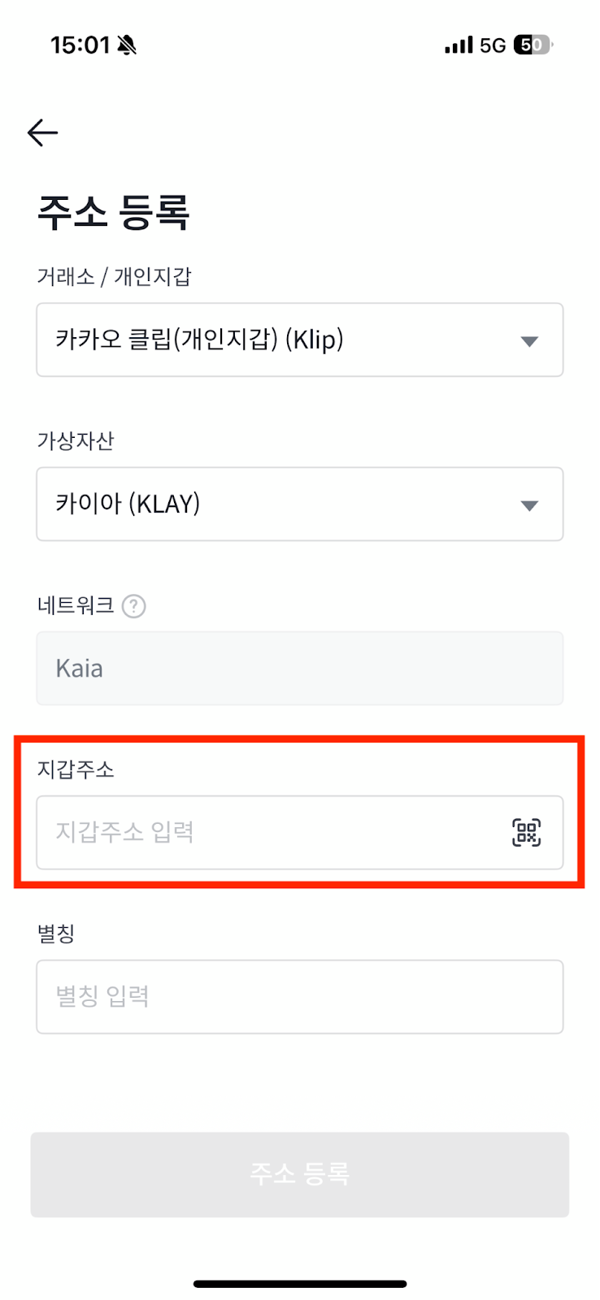
      <Step title="Start address registration">
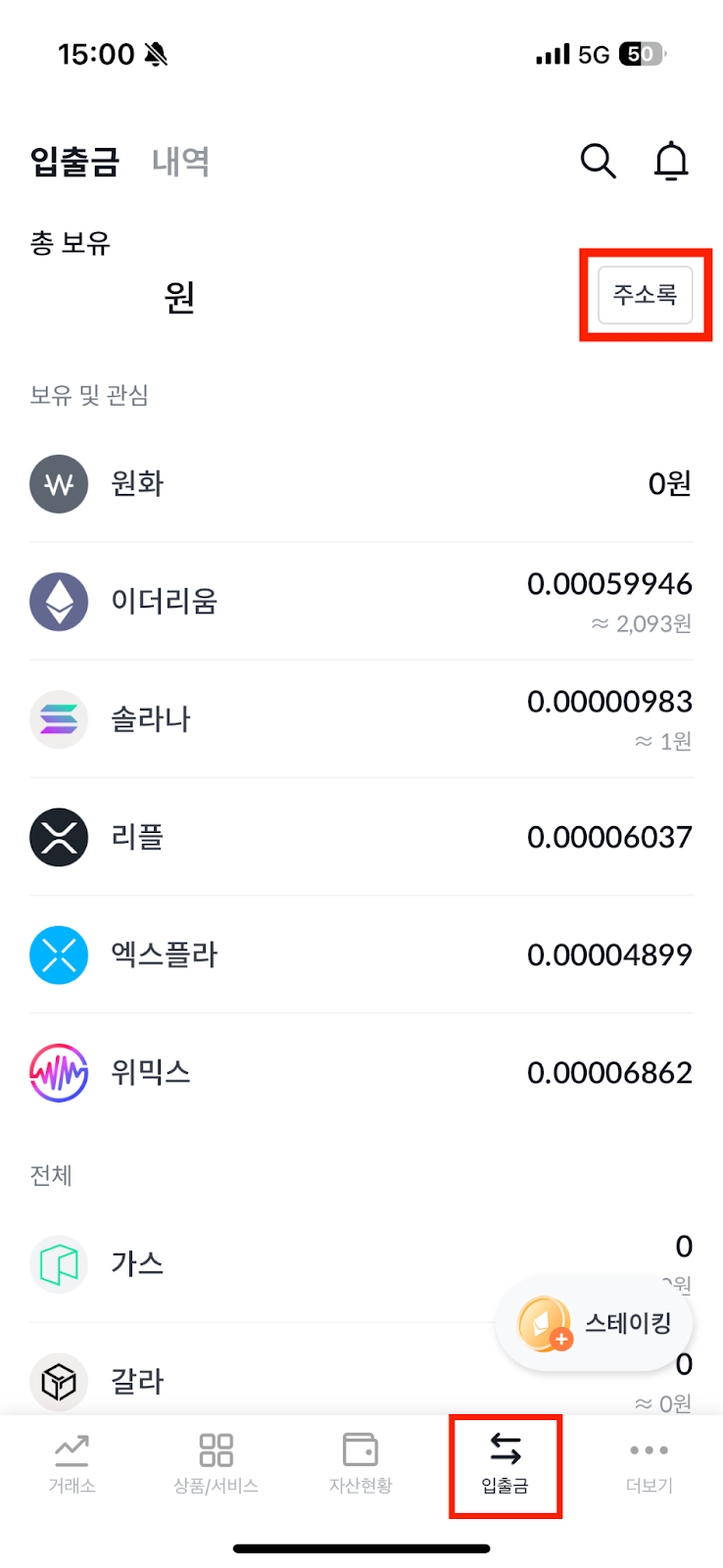
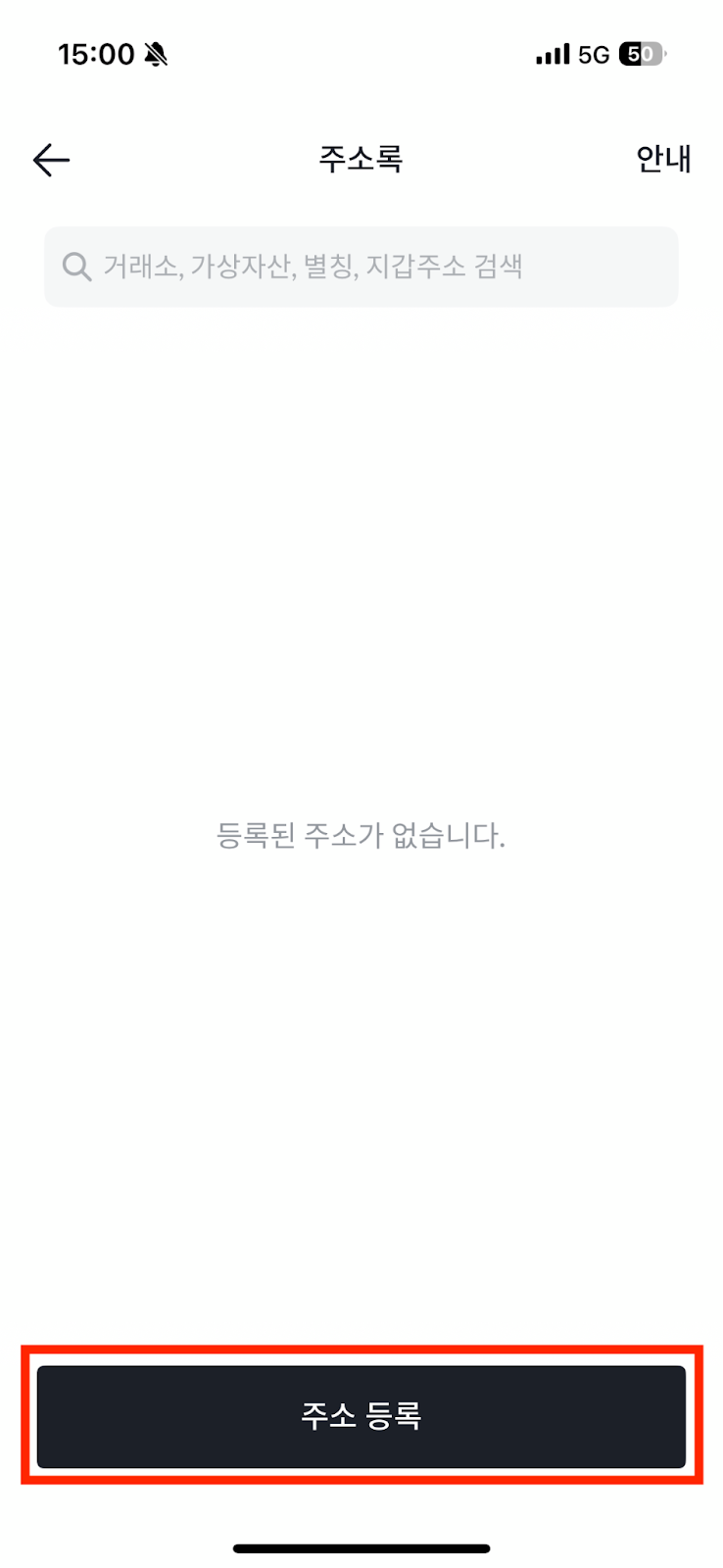
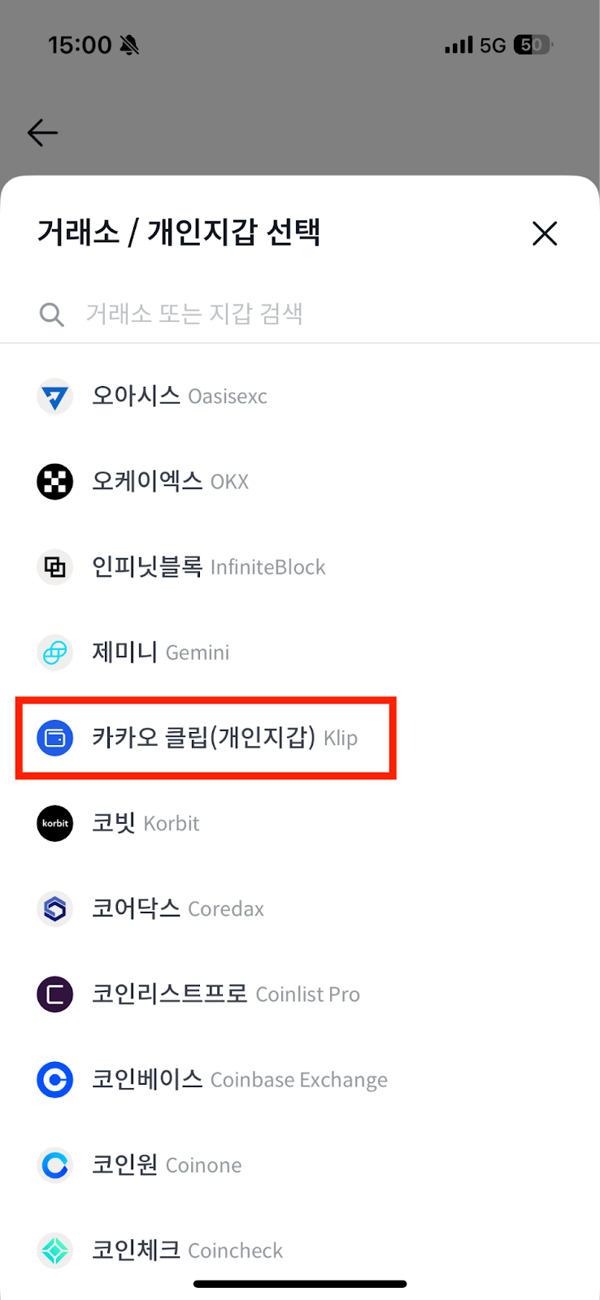
        <p>Log in to the Bithumb app -> bottom <strong>Deposit/Withdraw</strong> tab -> top <strong>Address Book</strong> -> select <strong>Register Address</strong>.</p>
        <p>Select <strong>Klip</strong>, the wallet type supported by Bithumb.</p>

        <div className="flex gap-3">
          <img className="w-1/2" width="50%" src="https://mintcdn.com/superearn-fe42391a/x9dSldna6RDpfNn-/images/tutorials/tutorial_bithumb_2.webp?fit=max&auto=format&n=x9dSldna6RDpfNn-&q=85&s=583049d76e59e64b19c1a6ed9e6be1c5" data-path="images/tutorials/tutorial_bithumb_2.webp" />

          <img className="w-1/2" width="50%" src="https://mintcdn.com/superearn-fe42391a/x9dSldna6RDpfNn-/images/tutorials/tutorial_bithumb_3.webp?fit=max&auto=format&n=x9dSldna6RDpfNn-&q=85&s=90a275ae2211099b266087fd61248edc" data-path="images/tutorials/tutorial_bithumb_3.webp" />
        </div>
      </Step>

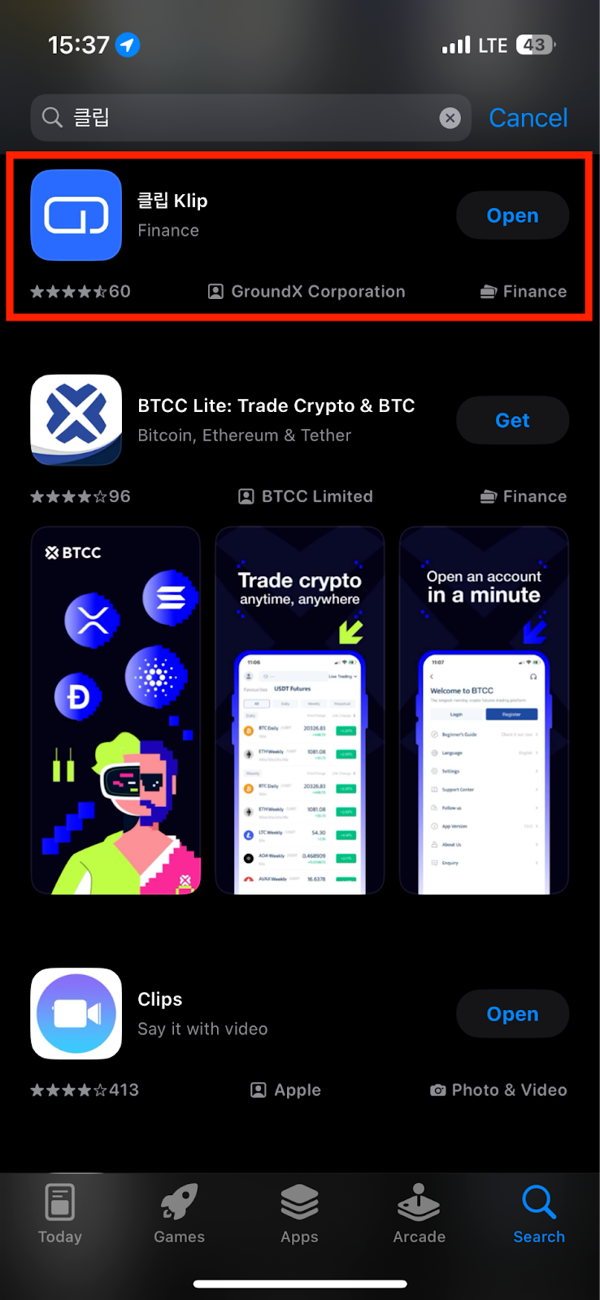
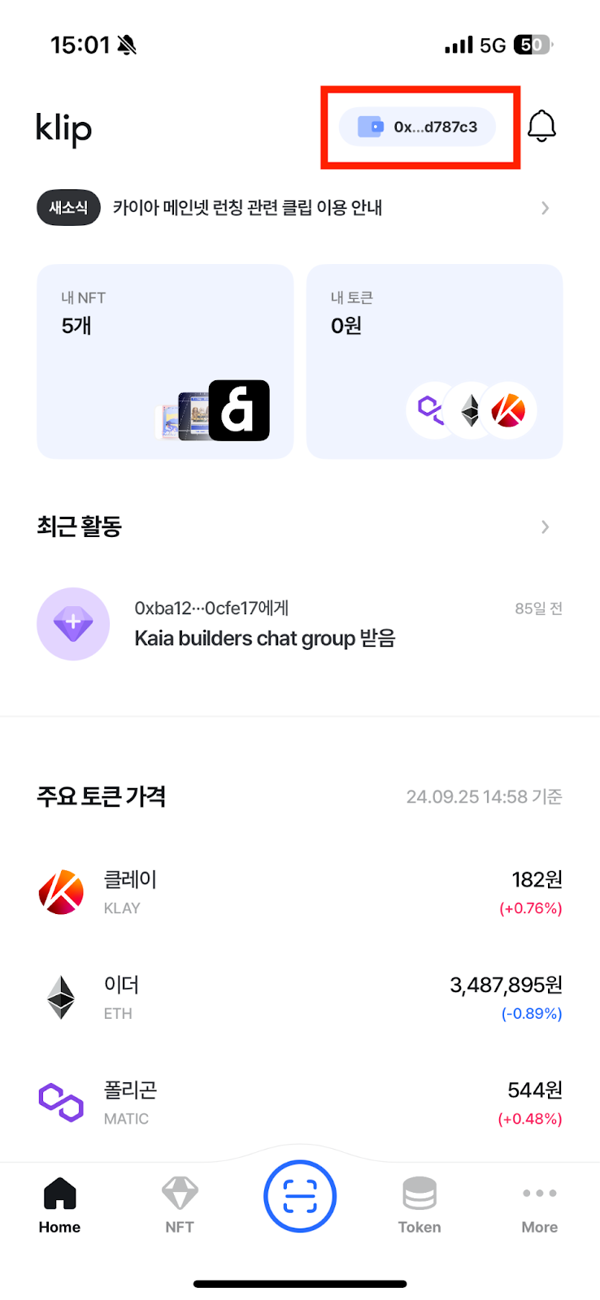
      <Step title="Install Klip wallet and copy address">
        <ul>
          <li>Download the <strong>Klip</strong> app from the Android Play Store or iOS App Store</li>
          <li>Open the Klip app -> top-right wallet icon -> tap <strong>Copy</strong> under your personal wallet address</li>
        </ul>

        <div className="flex gap-3">
          <img className="w-1/2" width="50%" src="https://mintcdn.com/superearn-fe42391a/x9dSldna6RDpfNn-/images/tutorials/tutorial_bithumb_4.webp?fit=max&auto=format&n=x9dSldna6RDpfNn-&q=85&s=bb5ca60c169f3b280946bb58a5680b69" data-path="images/tutorials/tutorial_bithumb_4.webp" />

          <img className="w-1/2" width="50%" src="https://mintcdn.com/superearn-fe42391a/x9dSldna6RDpfNn-/images/tutorials/tutorial_bithumb_5.webp?fit=max&auto=format&n=x9dSldna6RDpfNn-&q=85&s=3f967259d8b72585d35b0288edc96751" data-path="images/tutorials/tutorial_bithumb_5.webp" />
        </div>
      </Step>

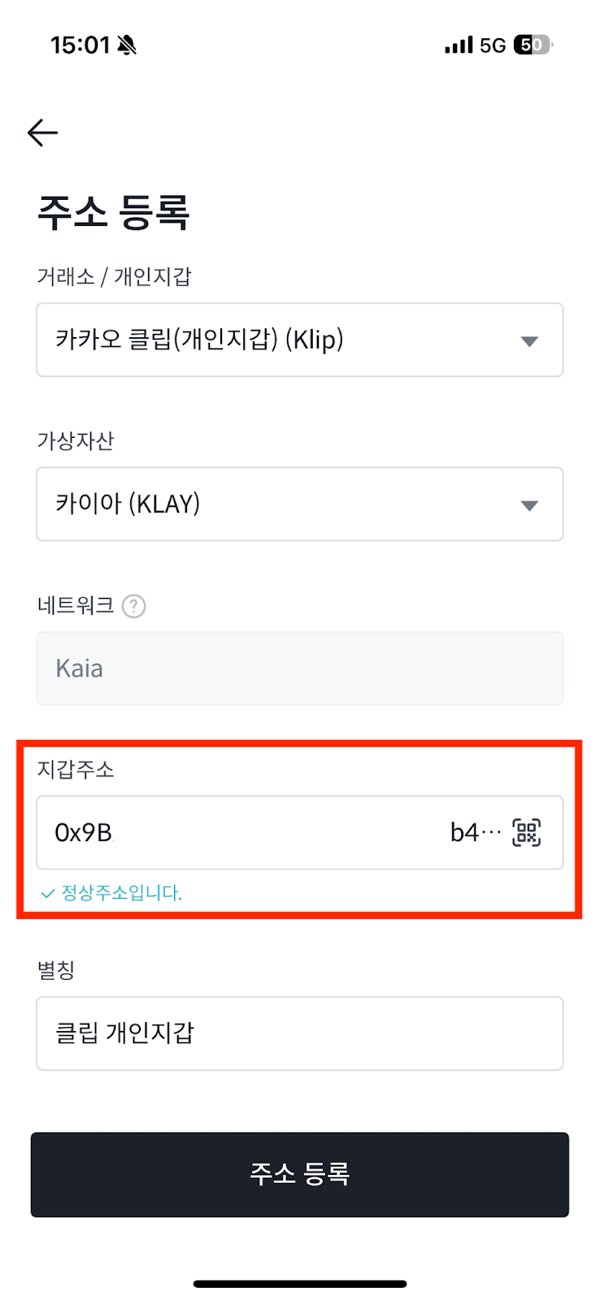
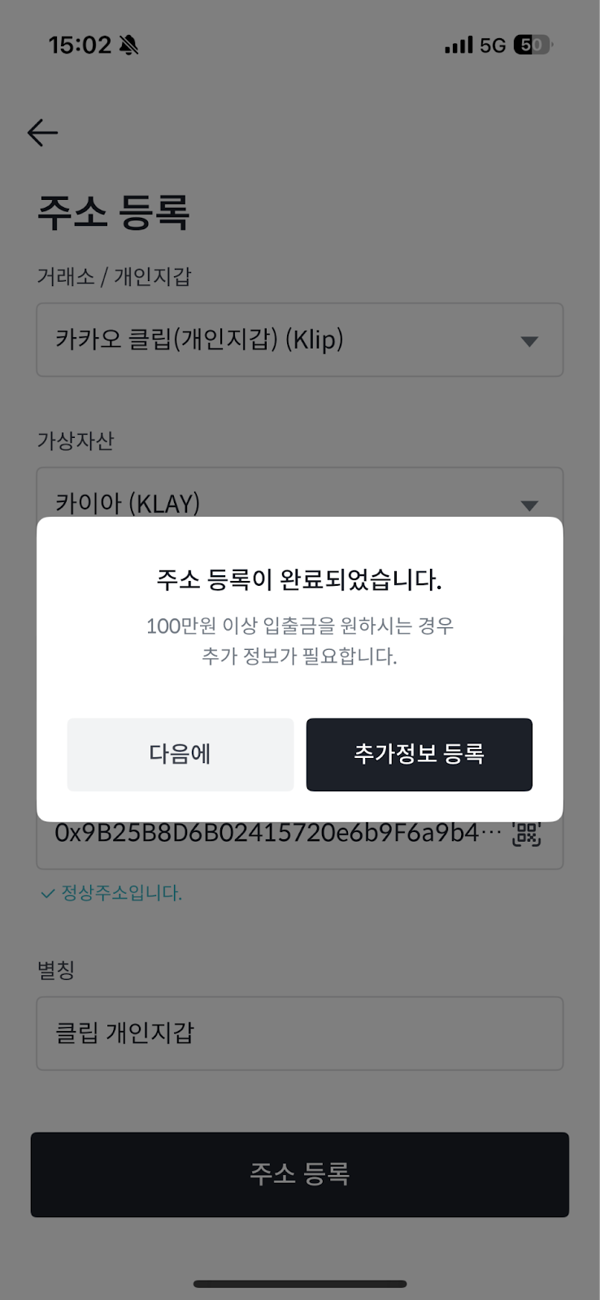
      <Step title="Enter address registration information">
        <ul>
          <li>Paste the wallet address on the Bithumb registration page</li>
          <li>Check the valid address confirmation message</li>
          <li>Enter an <strong>alias</strong> and click <strong>Register Address</strong></li>
        </ul>

        <p>After address registration, proceed with <strong>Additional Information Registration</strong>.</p>

        <div className="flex gap-3">
          <img className="w-1/2" width="50%" src="https://mintcdn.com/superearn-fe42391a/x9dSldna6RDpfNn-/images/tutorials/tutorial_bithumb_7.webp?fit=max&auto=format&n=x9dSldna6RDpfNn-&q=85&s=bcd8c21934258b7d2e3a2d17117ef633" data-path="images/tutorials/tutorial_bithumb_7.webp" />

          <img className="w-1/2" width="50%" src="https://mintcdn.com/superearn-fe42391a/x9dSldna6RDpfNn-/images/tutorials/tutorial_bithumb_8.webp?fit=max&auto=format&n=x9dSldna6RDpfNn-&q=85&s=6e40ec489739edb602f3293ac75357bf" data-path="images/tutorials/tutorial_bithumb_8.webp" />
        </div>
      </Step>

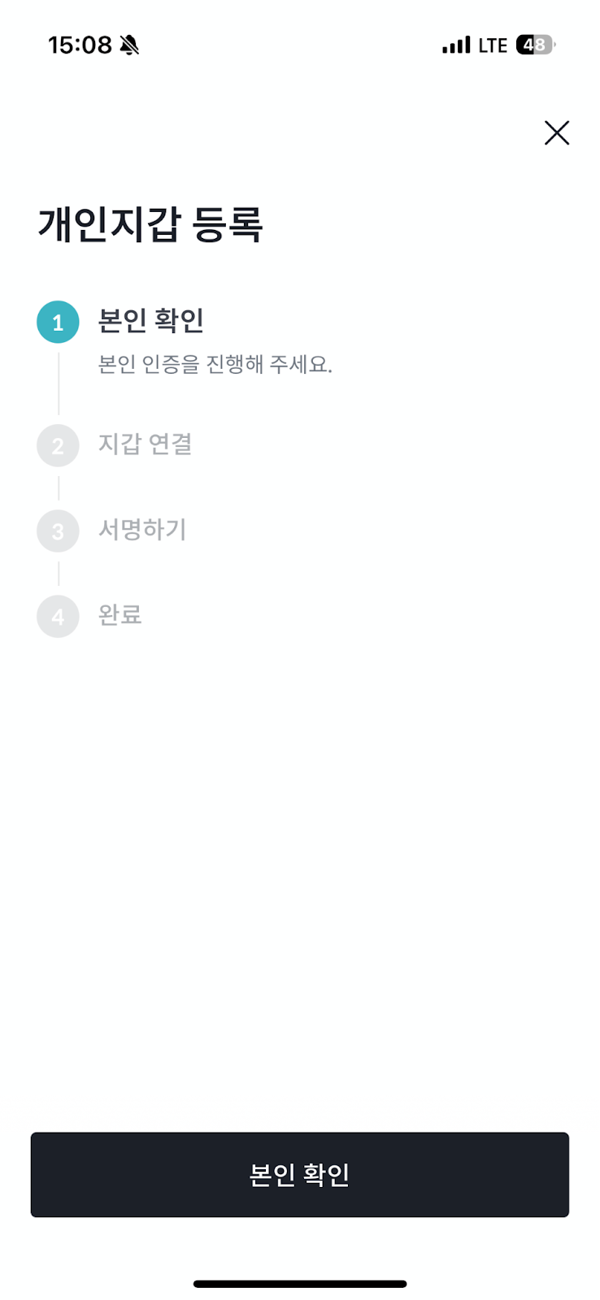
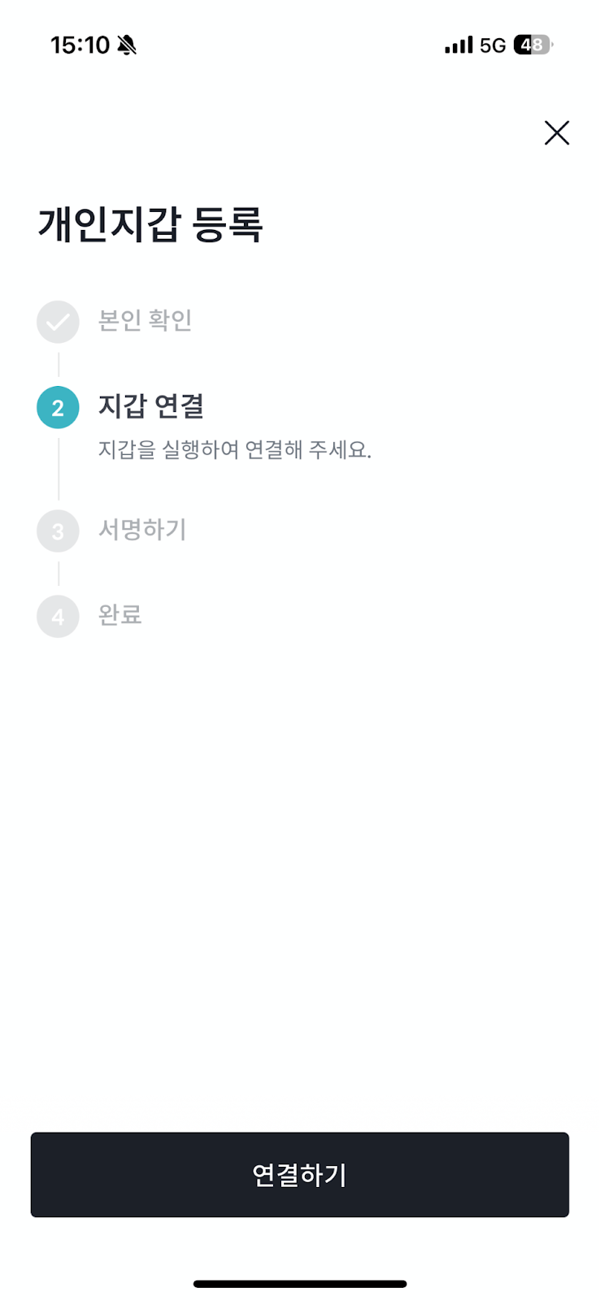
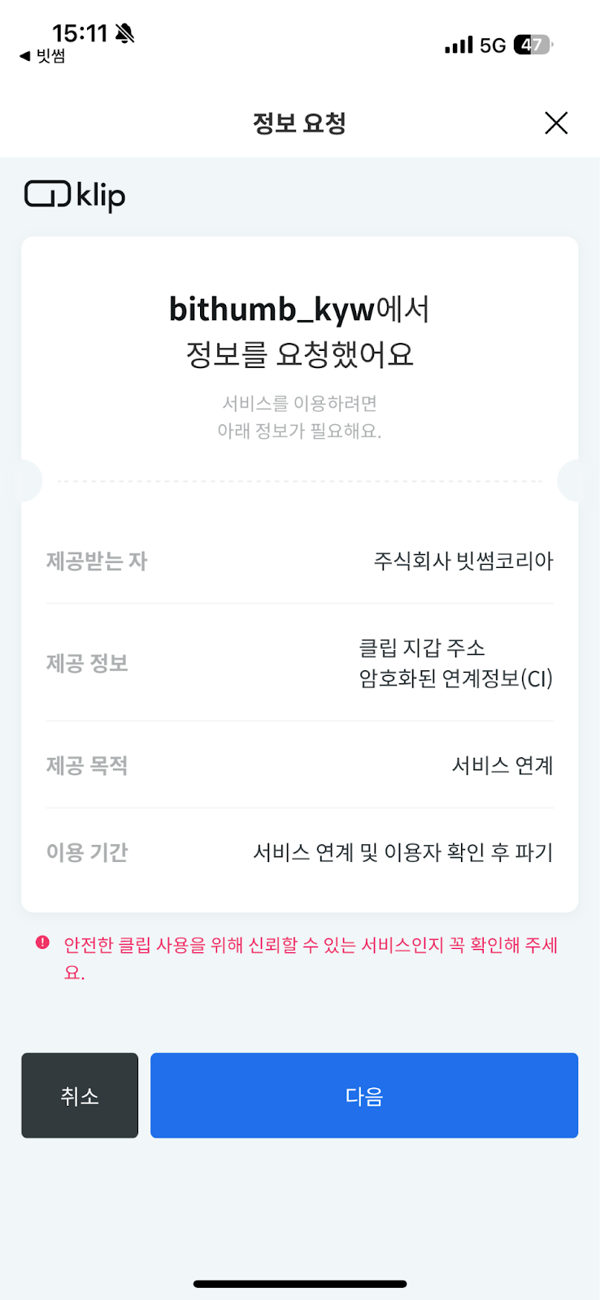
      <Step title="Additional info registration (identity, connection, signature)">
        <ul>
          <li>Tap <strong>Verify Identity</strong> -> complete phone verification in the PASS app</li>
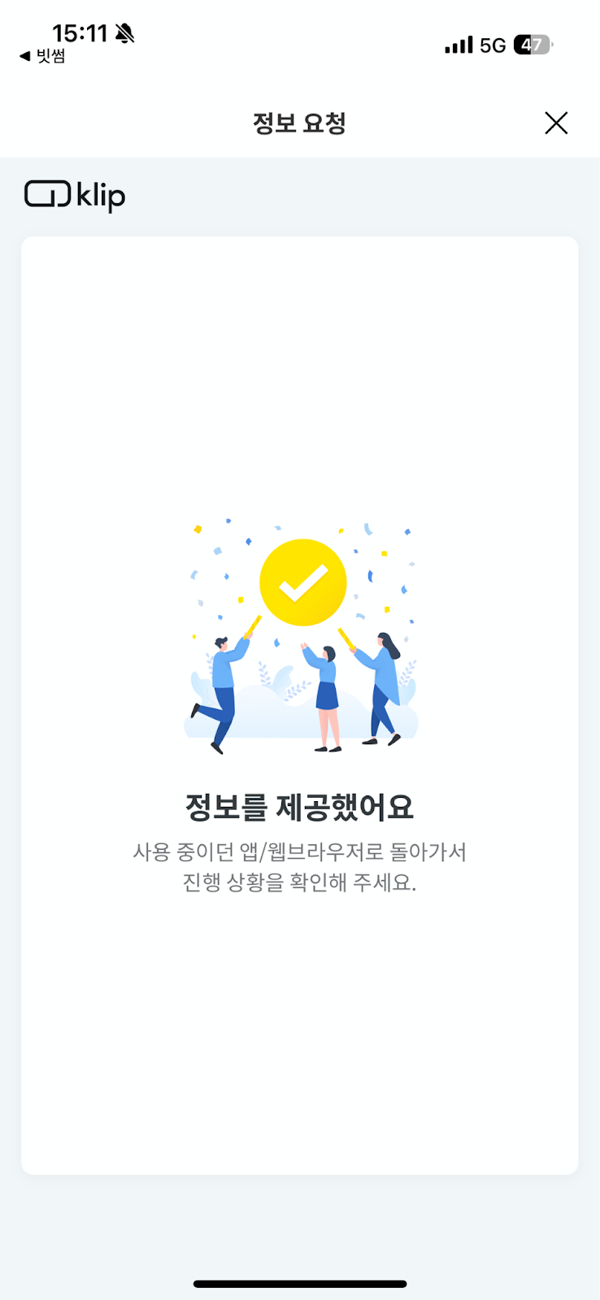
          <li>Tap <strong>Connect</strong> -> switch to the KakaoTalk in-app Klip info request page</li>
          <li>Provide info and finish with <strong>Next</strong> -> return to the Bithumb app</li>
          <li>Tap <strong>Sign</strong> -> complete the signature to confirm wallet ownership</li>
        </ul>

        <p>Tap <strong>Done</strong> at the end to finish personal wallet registration.</p>

        <div className="flex gap-3">
          <img className="w-1/2" width="50%" src="https://mintcdn.com/superearn-fe42391a/x9dSldna6RDpfNn-/images/tutorials/tutorial_bithumb_9.webp?fit=max&auto=format&n=x9dSldna6RDpfNn-&q=85&s=04be9dfb516dd9d0edcfea46009e80c7" data-path="images/tutorials/tutorial_bithumb_9.webp" />

          <img className="w-1/2" width="50%" src="https://mintcdn.com/superearn-fe42391a/x9dSldna6RDpfNn-/images/tutorials/tutorial_bithumb_10.webp?fit=max&auto=format&n=x9dSldna6RDpfNn-&q=85&s=14cebe346507e36376a7660700f26dc3" data-path="images/tutorials/tutorial_bithumb_10.webp" />
        </div>

        <div className="flex gap-3">
          <img className="w-1/2" width="50%" src="https://mintcdn.com/superearn-fe42391a/x9dSldna6RDpfNn-/images/tutorials/tutorial_bithumb_11.webp?fit=max&auto=format&n=x9dSldna6RDpfNn-&q=85&s=78c6358a2da712d7f4a1faa99319fe13" data-path="images/tutorials/tutorial_bithumb_11.webp" />

          <img className="w-1/2" width="50%" src="https://mintcdn.com/superearn-fe42391a/x9dSldna6RDpfNn-/images/tutorials/tutorial_bithumb_12.webp?fit=max&auto=format&n=x9dSldna6RDpfNn-&q=85&s=a8546bb068440e51791c29507d501eb7" data-path="images/tutorials/tutorial_bithumb_12.webp" />
        </div>
      </Step>

      <Step title="Withdraw Kaia USDT from Bithumb">
        <ul>
          <li>Bithumb app -> <strong>Deposit/Withdraw</strong> tab -> <strong>Select Tether -> Choose Kaia as withdrawal network -> Select recipient address</strong></li>
          <li>Select your pre-registered Klip wallet address</li>
          <li>Complete phone number verification and submit Kaia USDT withdrawal</li>
        </ul>

        <p>Withdrawals may take up to 30 minutes depending on exchange review status. If delayed, contact customer support.</p>
      </Step>
    </Steps>
  </Accordion>
</AccordionGroup>

***

## 2-2. Move assets from another chain to Kaia

<Accordion title="Using a bridge">
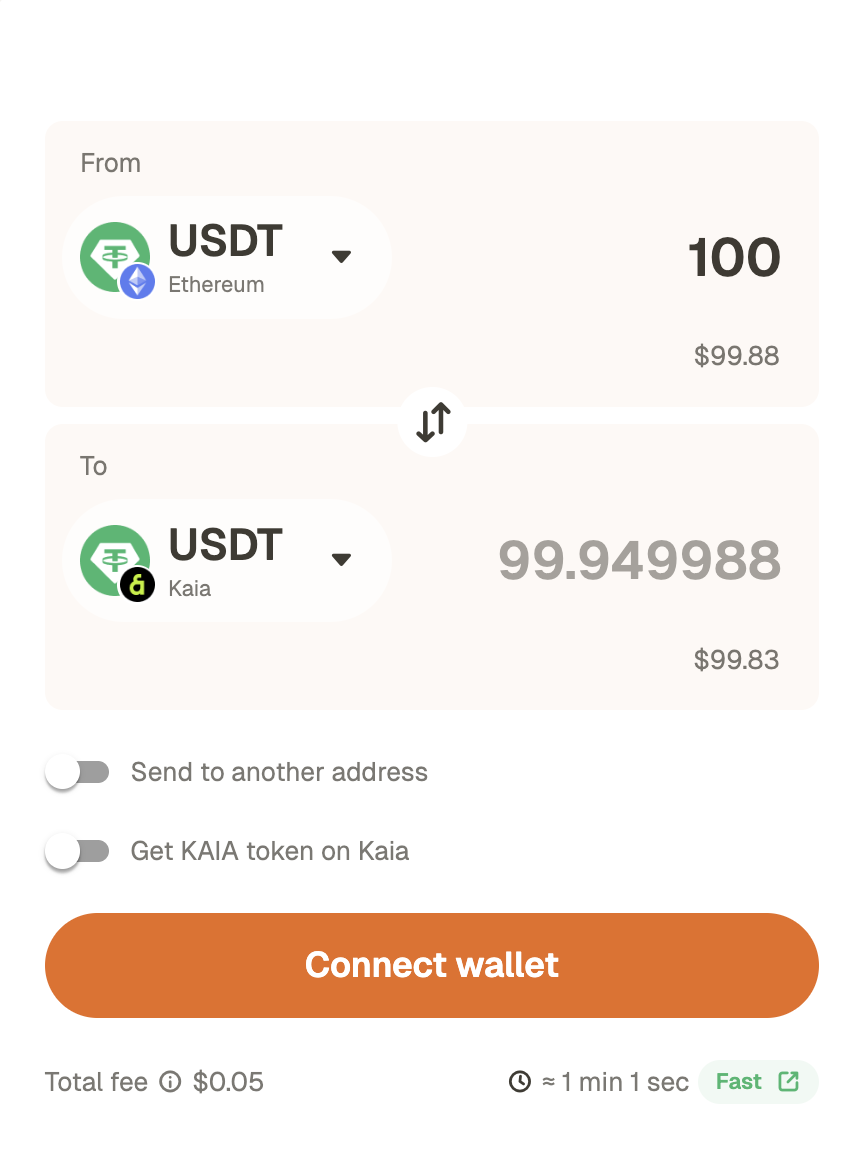
  * If you hold USDT on another chain, go to the top menu and select "Get USDT" -> "Bridge".
  * You can easily move USDT from another chain via the [Rhino.fi](https://app.rhino.fi/bridge?mode=pay\&chainIn=ETHEREUM\&chainOut=KAIA\&token=USDT\&tokenOut=USDT\&amount=100) bridge.

  <img className="w-1/2" width="50%" src="https://mintcdn.com/superearn-fe42391a/PMV45DXKHOGbDPfJ/images/rhinobridge.png?fit=max&auto=format&n=PMV45DXKHOGbDPfJ&q=85&s=6068b8320490cb7d0edd128a843354dd" data-path="images/rhinobridge.png" />

  \*Rhino is a cross-chain infrastructure provider backed by [Tether and Bitfinex](https://tether.io/news/tether-and-rhinofi-forge-strategic-alliance-to-enhance-usdt-utility-within-defi-prioritizing-user-experience/). It has processed roughly \$6 billion in cumulative transactions and operated cross-chain infrastructure for about six years. Rhino also provides enterprise-grade availability and audited stablecoin payment rails, including KYT (transaction monitoring) checks during execution.
</Accordion>

***

## 3. Confirm deposit in your wallet

<AccordionGroup>
  <Accordion title="Deposit confirmation steps">
    <Steps>
      <Step title="Check the network">
        Switch to the relevant network in MetaMask (e.g., Kaia Mainnet).
      </Step>

      <Step title="Check tokens/balance">
        Check your balance or Activity history.\
        If the token is not visible, you may need to select "Show (add) token."
      </Step>

      <Step title="If delayed or issues occur">
        Use the TxID (transaction hash) from the exchange withdrawal history to verify the transfer status on the explorer.
      </Step>
    </Steps>
  </Accordion>
</AccordionGroup>

***

## 4. Connect your wallet & use SuperEarn

Once USDT is ready in MetaMask, connect your wallet to SuperEarn and make a deposit.

<AccordionGroup>
  <Accordion title="SuperEarn deposit steps">
    <Steps>
      <Step title="Connect wallet">
        Click Deposit -> select MetaMask when prompted to Connect Wallet
      </Step>

      <Step title="Enter deposit amount and approve">
        Enter the USDT amount to deposit -> if needed, approve USDT -> confirm the deposit transaction
      </Step>

      <Step title="Check after deposit">
        After depositing, check your balance/APY/status on the SuperEarn screen
      </Step>
    </Steps>
  </Accordion>

  <Accordion title="SuperEarn withdrawal steps">
    * Tap the 'Withdraw' button in the app to withdraw the amount you want.
    * Assets can be withdrawn at any time, and all steps are managed transparently and securely by the protocol.
    * Note:
      * Some products require a withdrawal window of about a day for safety and rebalancing.
  </Accordion>
</AccordionGroup>

***

## Common mistakes/errors checklist

* Network mismatch: If the exchange withdrawal network and the MetaMask (and SuperEarn) network differ, assets will not arrive on the intended chain.
* Incorrect address/clipboard tampering: After pasting the address, recheck the first 6 and last 4 characters.
* Insufficient gas: On the Kaia network, USDT approve/deposit transactions may require a small amount of gas. Gas can be paid in KAIA or USDT.
* Exchange withdrawal restrictions: Withdrawals may be restricted if travel rule/whitelist/extra verification steps are incomplete.

If the issue persists, check in this order:\
(1) Verify the TxID from the exchange withdrawal history ->\
(2) Check the transfer status in the explorer ->\
(3) Verify MetaMask network/token display

## Sources and references

1. [Binance FAQ: How to Withdraw Crypto from Binance (Official Guide)](https://www.binance.com/en/support/faq/how-to-withdraw-crypto-from-binance-115003670492)
2. [Upbit Help Center: How to register a personal wallet address](https://support.upbit.com/hc/ko/articles/6713306957977-%EA%B0%9C%EC%9D%B8%EC%A7%80%EA%B0%91%EC%A3%BC%EC%86%8C-%EB%93%B1%EB%A1%9D-%EB%B0%A9%EB%B2%95)
3. [Upbit Help Center: Personal wallet withdrawals under 1,000,000 KRW (example screens included)](https://support.upbit.com/hc/ko/articles/5036542302361)
4. [Kaia Docs: Connecting MetaMask to Kaia (network values and example screens)](https://docs.kaia.io/build/tutorials/connecting-metamask/)

Note: The screenshots in this document are cited/reconstructed from guidance materials provided by each service. Trademarks and UI rights belong to their respective providers.

<Note>
  **Need more help?** Check the [community](https://x.com/SuperEarnX) posts or contact us anytime via [featurebase](https://superearn.featurebase.app/).
</Note>